.png)
What it does
The Elva integration turns a hire in Ashby into a fully-managed relocation. The moment a candidate reaches your relocation stage, Elva opens a case, assigns a relocation manager, and works through visa, housing, school search, and logistics for the new hire. You and your candidate stay in the tools you already use, Ashby for the hiring record, Elva for the relocation work, and progress flows back to the candidate's Ashby profile automatically.
What your team gets
- One click, and relocation is in motion. No more hand-offs, email, or spreadsheets.
- Progress visible where you already work. Your recruiters see "visa approved", "housing confirmed", "start date on track" within Ashby.
- Candidates get a real person, not a ticket queue. A dedicated Elva relocation manager takes over the moment the integration starts.
What your candidate gets
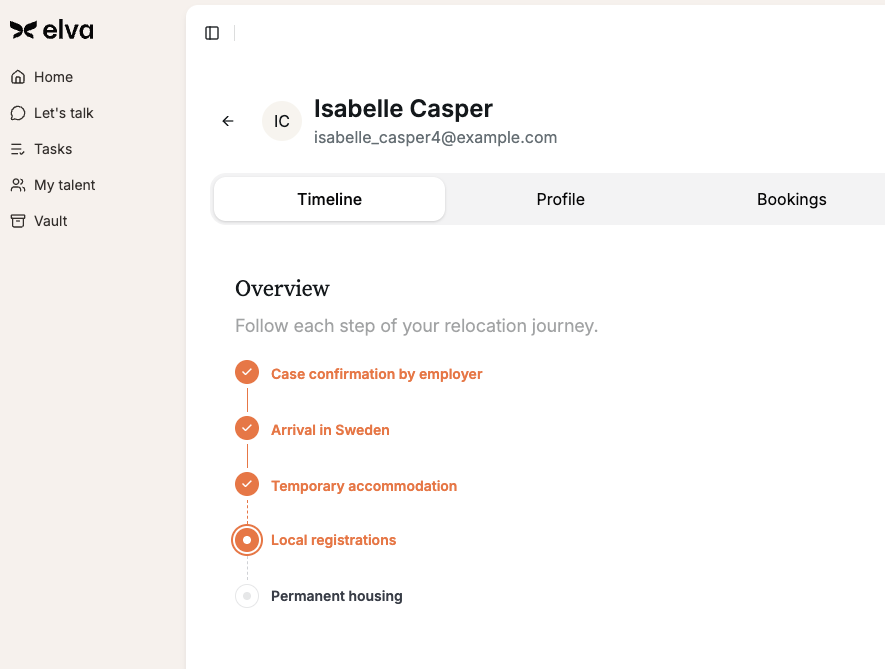
- A dedicated Elva app with their move plan, documents, checklists, and a chat line to their relocation manager.
- Clear next steps and deadlines, no chasing HR for updates.
- A consistent experience whether they're moving from Berlin to Helsinki or São Paulo to Stockholm.
How to use it
Once the integration is set up, relocation runs straight from your normal hiring flow. When a recruiter moves a candidate to Hired, Ashby prompts them to confirm the details and Elva opens the case.
- Confirm or change the relocation package for this hire (Full move / Local setup / Immigration & Registration).
- Fill in per-candidate details like start date, country of residence, family situation, and salary.
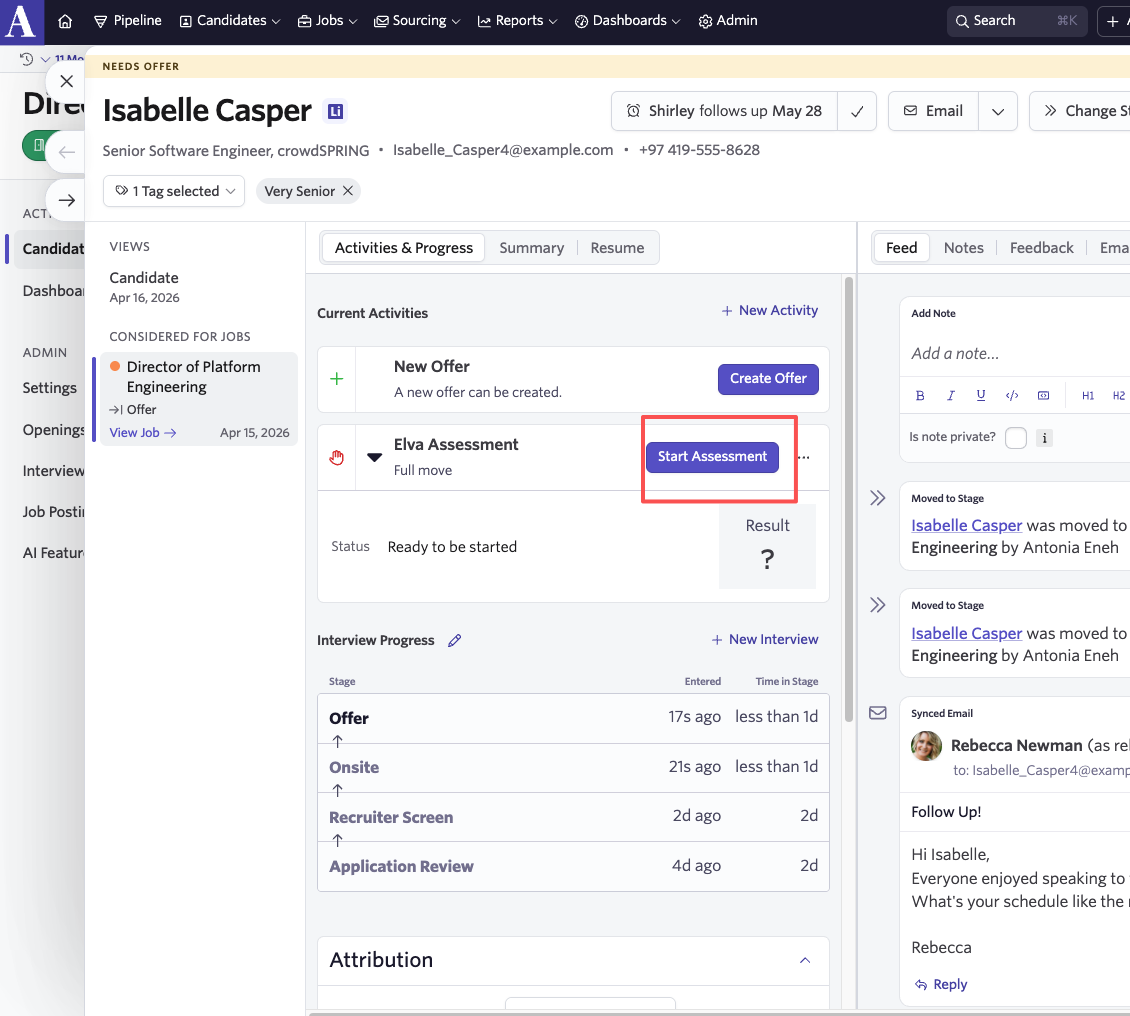
The moment they save, Elva opens the relocation case and the relocation manager gets to work.
What you'll see in Ashby
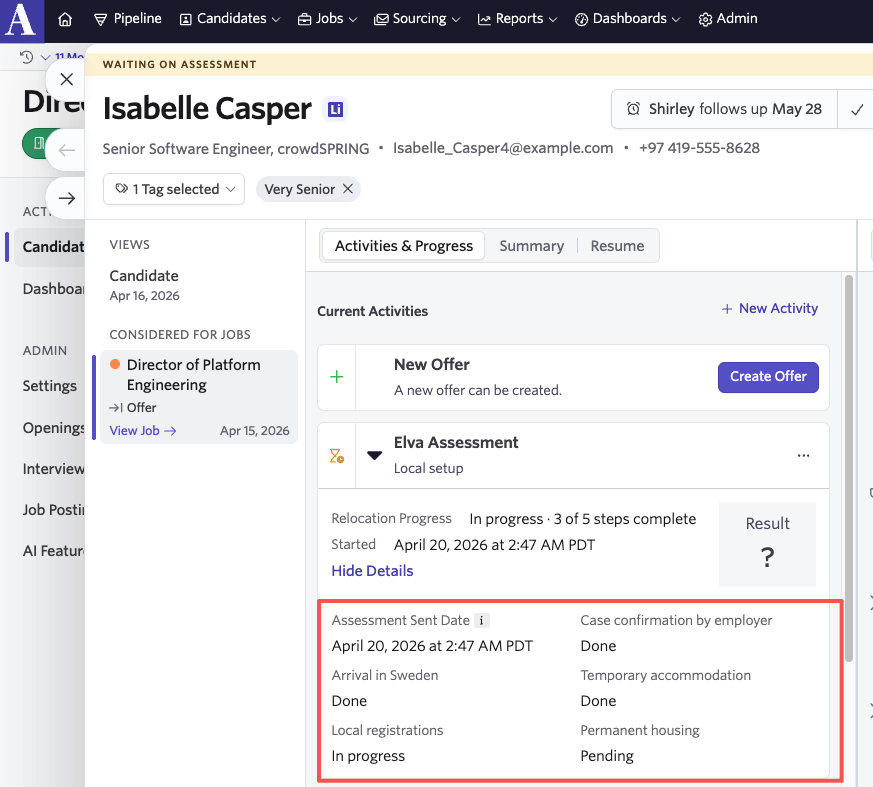
Open any candidate with an Elva assessment running. Their Ashby candidate activity shows a checklist of every relocation milestone, each step from Elva's relocation plan (residence permit, temporary accommodation, local registration, bank account, long-term housing, and so on) with a Done / In progress / Pending badge. Recruiters get the full picture without opening Elva.
The list updates automatically as Elva's relocation manager moves work forward. Click through to Elva whenever you want the detailed view, documents, chat, timelines.
Setup in Elva and Ashby
A one-time setup, about 5 minutes. You'll need:
- Access to your Elva company account.
- Admin access in Ashby with permission to enable marketplace integrations.
- A relocation package configured in Elva. (Your Elva contact sets this up during onboarding, reach out if you're not sure.)
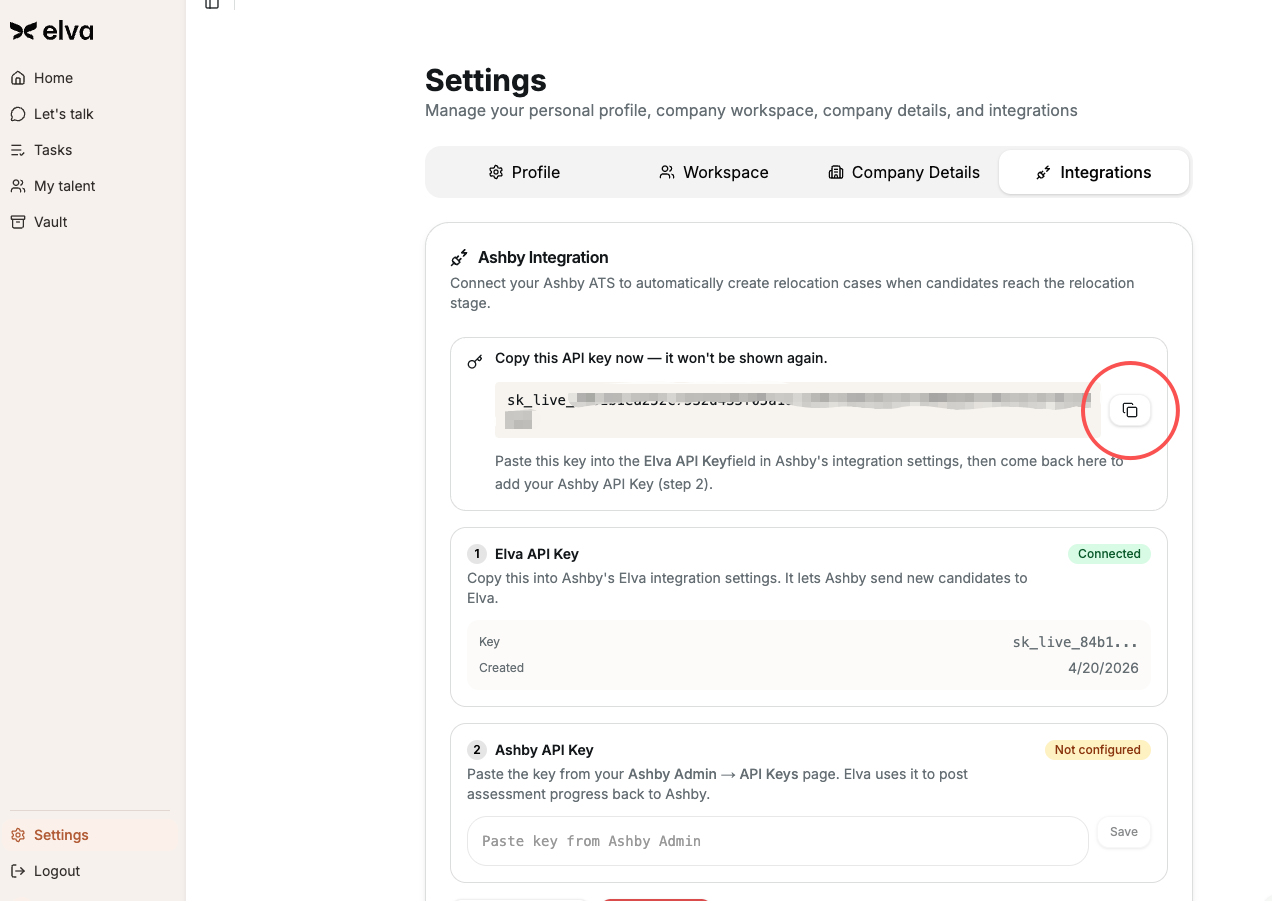
Step 1: Generate your Elva key
- Sign in to Elva and open Company → Profile.
- Find the Ashby Integration card.
- Click Generate API Key.
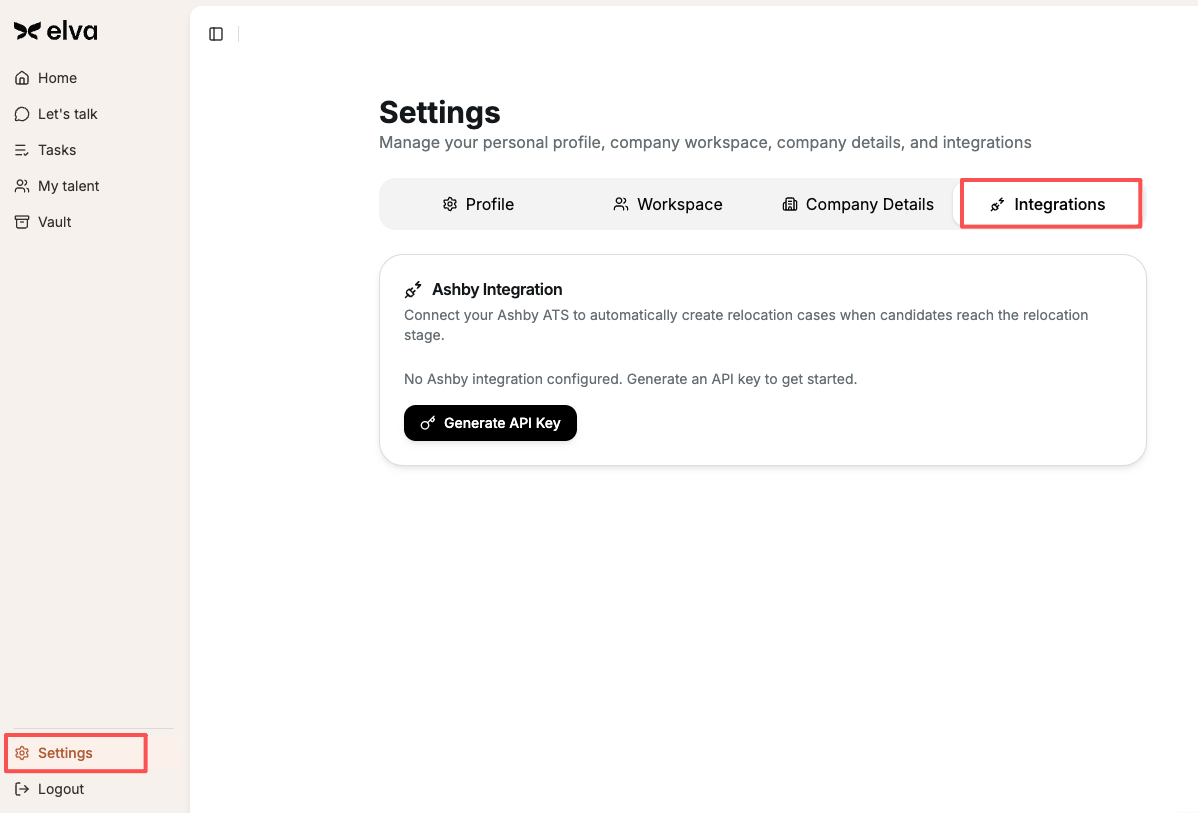
Copy the key that appears, this is the only time you'll see it. If you lose it you can always generate a new one.
Step 2: Turn Elva on in Ashby
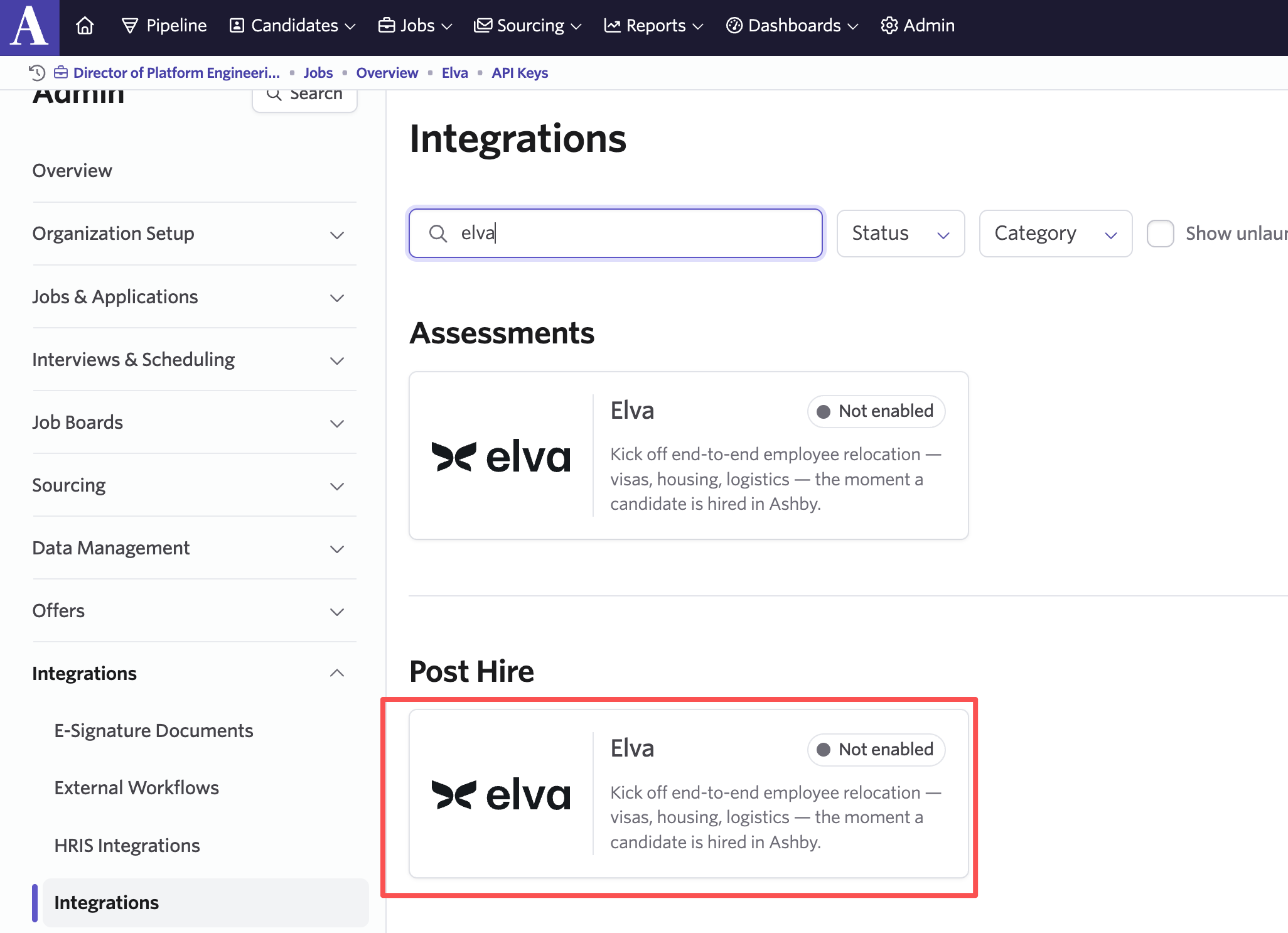
- In Ashby, go to Admin → Integrations → Marketplace.
- Search and open the Elva tile and click Enable.
- Paste the key you just copied into the Elva API Key field and save.
Step 3: Let Elva post relocation progress back to Ashby
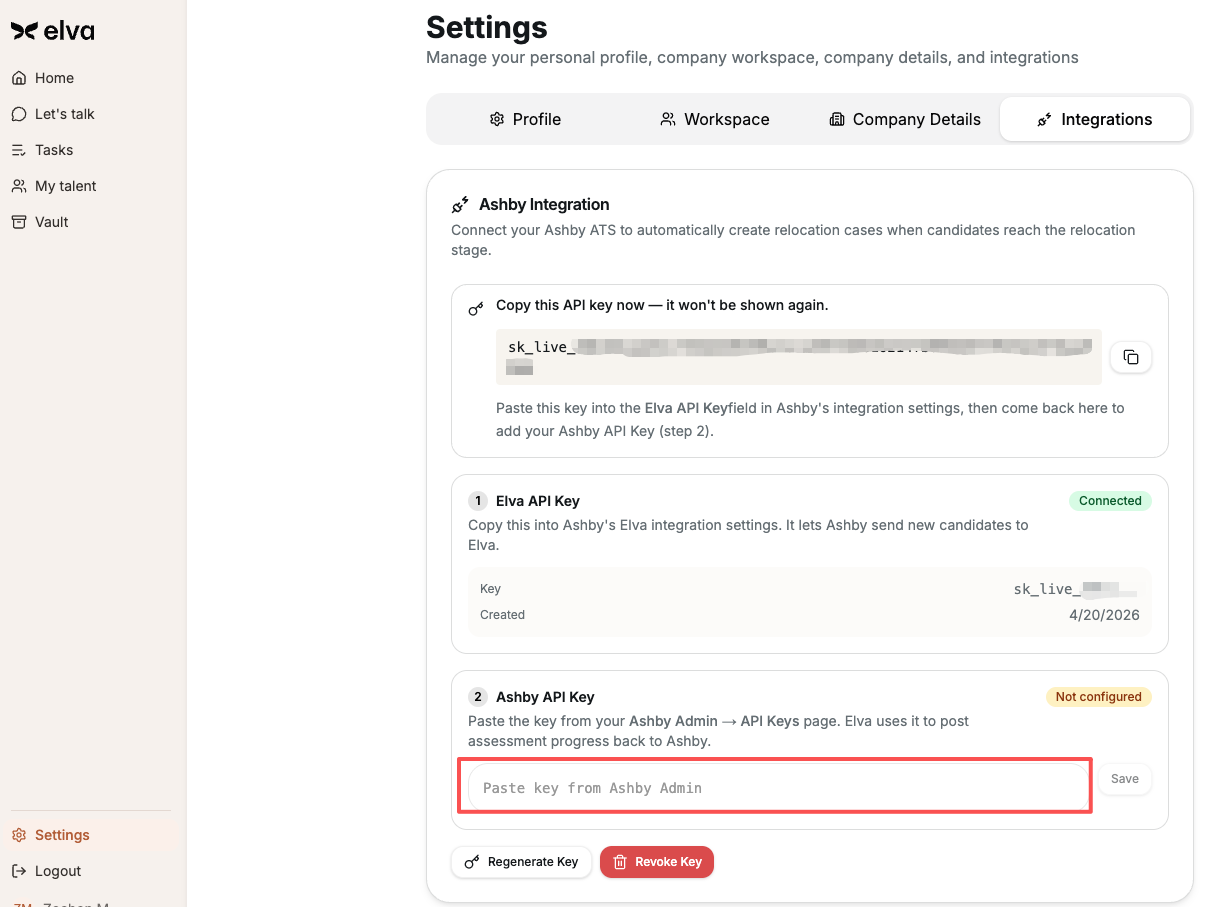
For your recruiters to see relocation progress on the candidate profile, Elva needs a key of its own from Ashby.
- In Ashby, go to Admin → API Keys and create a new key. Name it "Elva Outbound" so it is easy to spot later.
- Copy the key Ashby gives you.
- Back in Elva (Company → Profile → Ashby Integration), paste it into the Ashby API Key field and click Save. Both badges on the card turn green and show Connected.
Step 4: Add Elva to the jobs that need relocation
For each role where a hire will relocate:
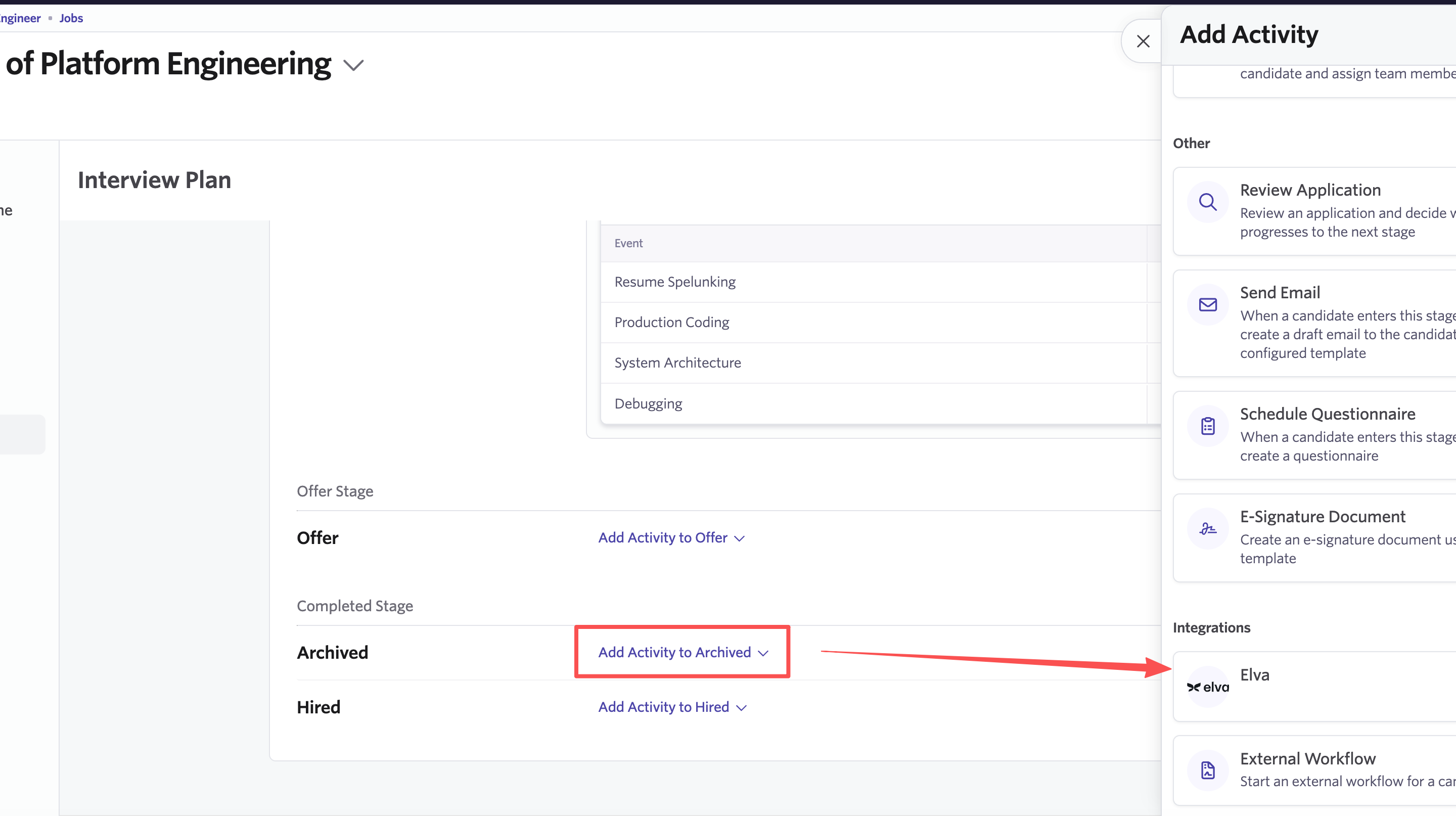
- Open the job in Ashby → Interview Plan.
- Find the Hired stage and click Add Activity to Hired.
- Under Integrations, pick Elva.
- Choose a default relocation package for this job (for example, Full move) and save. This is just the default, recruiters can change it per candidate when the activity fires.
That's the one-time setup per job, from now on it fires automatically whenever a candidate is marked Hired.
Pausing or rotating keys
Need to pause the integration? Go to Elva → Company → Profile → Ashby Integration → Revoke Key. No new cases are created. Relocations already in progress continue as normal.
Rotating a key? Use Regenerate Key in Elva (and repeat Step 2) or create a fresh Ashby key and paste it in (Elva replaces the old one in place).
A candidate was rejected by mistake? Reverse the rejection in Ashby, Elva will pick the case back up.
Support
Questions or trouble with the integration? We're happy to help.
- Reach out to your Elva contact directly.
- Chat with a relocation manager from the Elva platform.
- Or email support@withelva.com and include your Ashby organization name and a candidate email if your question is about a specific hire.
FAQ
Where is relocation work actually done? In Elva. Ashby is the trigger and the status board; Elva is where your relocation manager, the candidate, and their documents live.
Does Elva read other data from Ashby, jobs, candidates, offers? No. The integration only reacts to the relocation stage you add to an interview plan. Nothing else is pulled from Ashby.
Who in my org can manage the keys? Only company Owners in Elva can see or change the integration keys. Your recruiters won't see them at all.
Is the data secure? Keys are stored encrypted at rest, never shown twice, and all traffic between Elva and Ashby is over HTTPS.
What packages are available? Three relocation packages, each with EU and non-EU variants so the scope matches the employee's route:
- Full move (recommended), the most comprehensive option. Covers permits or right-of-residence, document prep, temporary accommodation, travel coordination, local registration, bank setup, tax and social security, and long-term home search.
- Local setup, for employees whose permits are already sorted. Covers temporary accommodation, local registration, bank, tax/social security, and long-term home search.
- Immigration & Registration, permits and registration only. Useful when local setup is handled separately.
Add-ons are available for spouse, children, and pets, plus pass-through items like permit fees, travel, temporary accommodation, tax advice, and wellbeing support. Your Elva contact can adjust package scope or pricing for your account.
How long does setup take? About 5 minutes once you have access in both platforms.